

Datafeedr is a fantastic tool right out of the box – the fact that it connects to every single affiliate network and pulls the product images directly over to your store saves so much time when building a new store.
It’s not long before you realise a major problem however – the affiliates all use different sized images.
Having some small and some large images in your product lists makes your shop look weird.
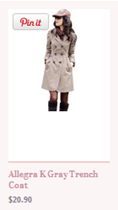
This is actually caused by two underlying problems:
- The merchants on the affiliate networks all use different sized images, tall versus square, versus fat etc
- The images themselves have a varying amount of whitespace contained within them – some have thin whitespace borders and some have fat whitespace
It gets worse – for many merchants, they will have different shaped or sized images depending on the type of product, or even randomly different sized images within the same product category.
To make your store and product lists look good, you need to make your images all fill the boxes.
AWD Images Plugin
My plugin AWD Images fixes the problem above and gives you complete control over your images on your datafeedr stores.
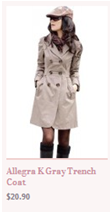
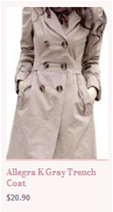
- Crop unnecessary white space from the edge of images – this immediately makes images larger and gives a much better experience for your users
- Zoom your images – you can zoom your images so they fit the entire height of the box or the entire width
Installation
This works faster since the images are cached locally rather than from my server. It just takes a little extra effort (you need to be able to use FTP).
Download the plugin files from here:
Download AWD Images Plugin ZIP
- Extract the files locally.
- Upload the awd-images folder to your plugins directory using FTP.
- Important Modify the cache folder permissions, change them to 777.
Using Hostgator? If you are using Hostgator, you will need to email them to modify your Mod_Security Rule to allow /wp-content/plugins/awd-images/cropandzoom.php to write to the cache folder within that directory.
Change the image tag to use the following code:
<img title=”[product.name]” src=”http://www.YOURDOMAINGOESHERE.com/wp-content/plugins/awd-images/cropandzoom.php?w=200&h=200&src=<?php echo rawurlencode($product->image); ?>” alt=”[product.name]” />
Domain Configuration Replace YOURDOMAINGOESHERE in the code above with your local domain name.
Configuring the different options
There are 4 parameters to use:
- w – specify the width in pixels of how big the image should be – use the width of the image container for best results
- h – specify the height in pixels of how big the image should be – use the height of the image container for best results
- src – specify the URL of the image. I just use [product.image direct=’1′ tag=’0′]
- zc – leave empty for image option 1 above or use zc=4 to zoom your images to use the full width of the container
Questions?
If you have any questions about usage or the potential of this system, post a message below.

Latest posts by dhilditch (see all)
- How to create a tree of categories from a custom taxonomy - September 22, 2014
- Managing postcodes and locations with WPAllImport - September 22, 2014
- Why do affiliate merchants reject your website? - August 20, 2014



January 14, 2013 @ 5:15 pm
Whats the price for this plugin, and where can i buy it?
January 14, 2013 @ 5:44 pm
Hi Thomas,
You get this plugin as a premium member of the site.
Premium membership starts at $47 and includes all plugins made so far and all plugins made in the next 3 months.
January 14, 2013 @ 5:44 pm
You can become a member here: http://www.affiliatewebdesigners.com/register/
January 14, 2013 @ 7:56 pm
okay thanks, do you have a list of the plugins made for datafeedr sites?
January 14, 2013 @ 8:26 pm
Currently the image plugin and the dropshipping plugin are for Datafeedr.
On their way are another few plugins though:
Ajax search – searches all your datafeedr products, categories AND wordpress content in one search form using ajax
Product Detail Email Capture – a popover on exit from the site that will help you capture email addresses on exit to and return from the affiliate site. (So you can send them deals and alerts)
There’s a bunch of other stuff in the pipeline but those two should be ready before the end of January.
February 3, 2013 @ 8:14 pm
I have downloaded the datafeedr image plugin, uploaded it to the plugins folder via the FTP and changed the permisions on the cache folder, but i still cant see the plugin in the plugins directory on my wordpress installation.
March 21, 2013 @ 5:01 pm
The image plugin doesn’t have an admin interface – the folder just needs to exist in your plugins folder then follow the rest of the instructions on this post to use the image resizer/cropper/whitespace remover functionality.
If you want to remove the plugin, delete the folder using FTP. I’ll maybe get round to adding an interface for this one soon.